


Last modified on:
Players often ask whether McLuck lets you “favorite” games or build a custom playlist of slots. The good news? Yes, McLuck has a built-in Favorites feature, and it’s incredibly easy to use once you know where to find it.
Below is a simple guide showing how to favorite a game, remove a favorite, access your saved games list, and use other useful browsing tools like Recently Played and For You.
How to Add a Game to Your Favorites on McLuck
After logging in, you can favorite any game directly from its game page. Here’s how to do it:
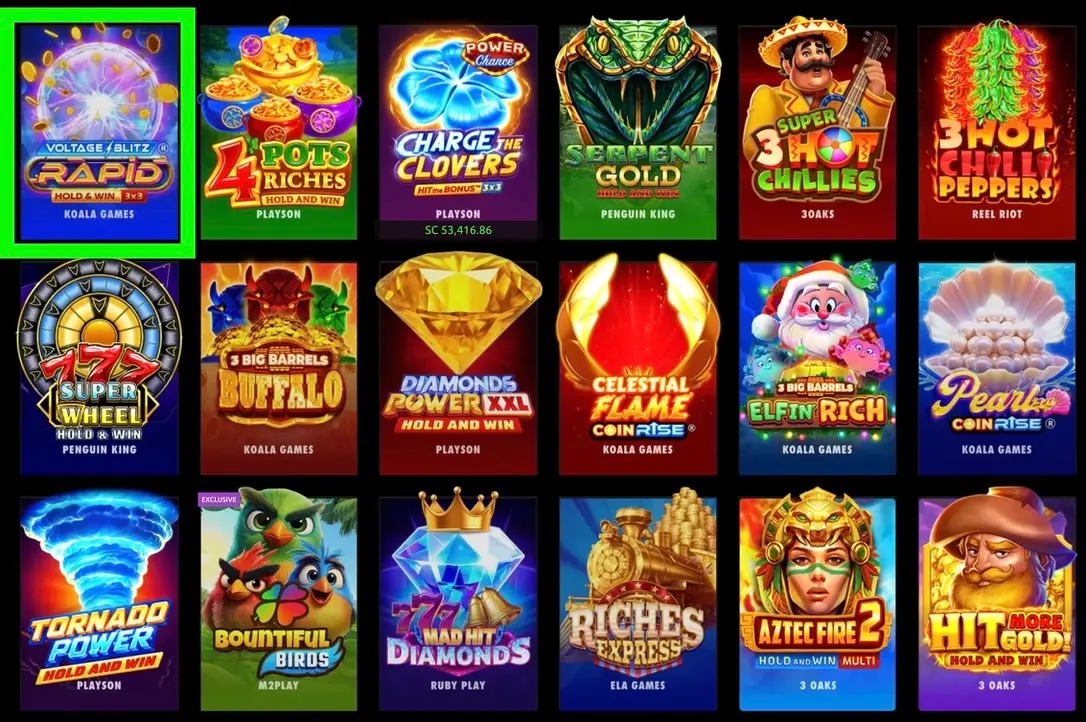
1. Click on the game you want to favorite
Open any game you like by clicking on the game tile or thumbnail, for example, Voltage Blitz Rapid slot below.
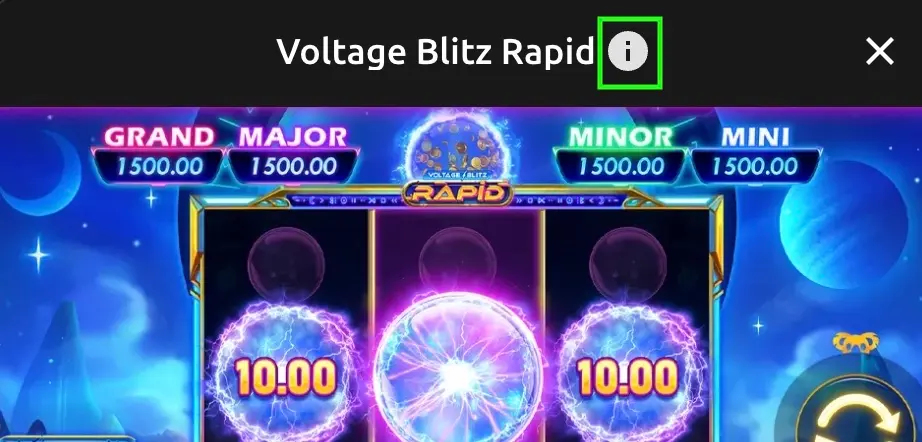
2. Click the “i” (information) icon
After selecting a game, a pop-up will appear with a small “i” icon. Tap or click this icon to open the game page.
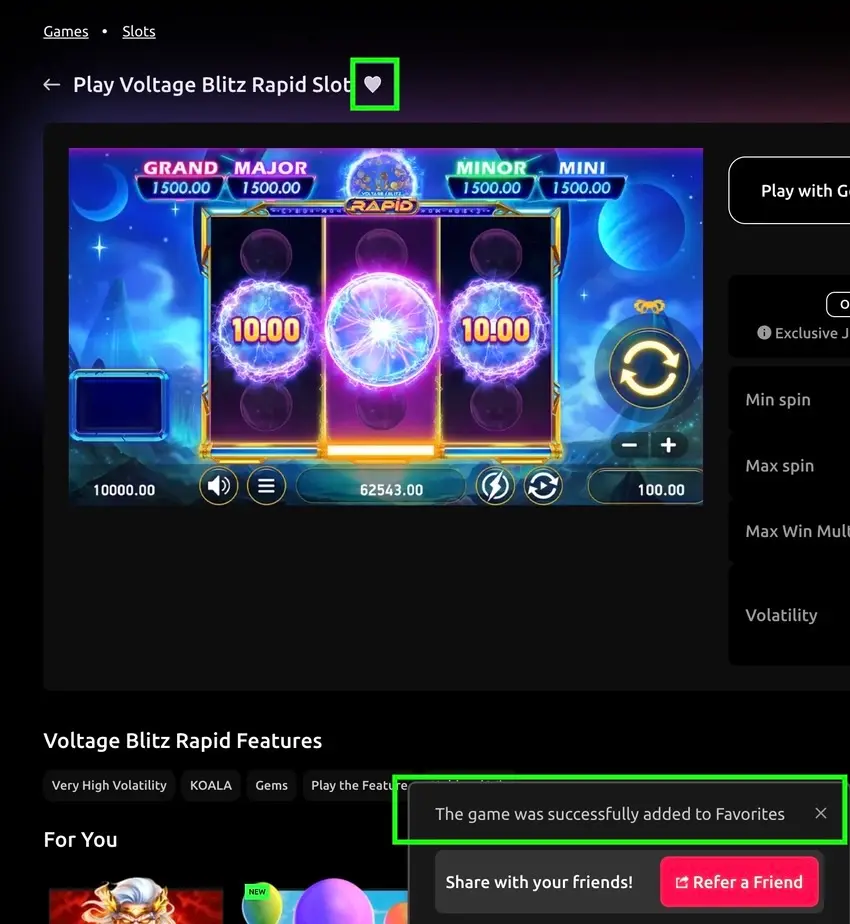
3. Click the heart icon next to the game name
At the top of the game page, right beside the slot’s title, you’ll see a heart icon (♡).
- When you click it, the heart becomes shaded/filled.
- A message will pop up confirming:
“The game was successfully added to Favorites.”
This means the game is now saved to your personal Favorites list.
How to View Your Saved Games
Once you’ve saved a few slots, live dealer or arcade games, you can access them anytime.
Where to find your Favorites list:
- Look at the left-hand sidebar menu.
- Scroll until you see the heart icon labeled “Favorite Games.”
(Note that this option only appears when you’re logged in to your McLuck account.)
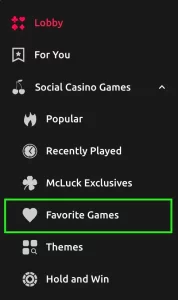
Clicking on it will open a dedicated page showing all games you’ve favorited.
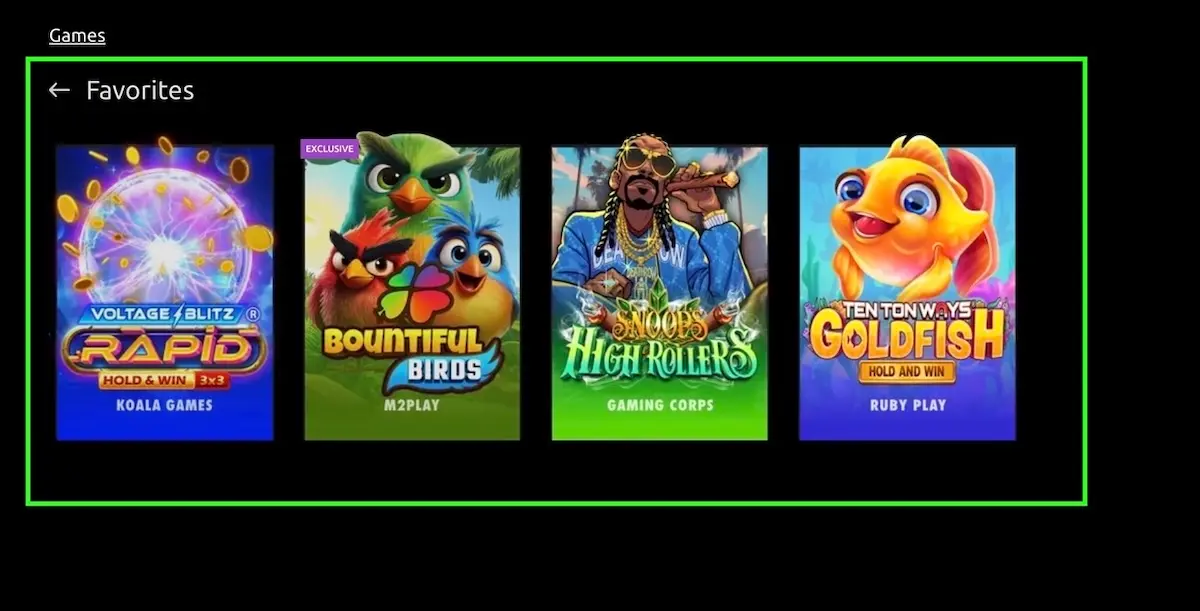
This acts like your own curated playlist of slots, great for jumping straight to your go-tos without searching.
How to Remove a Game From Favorites
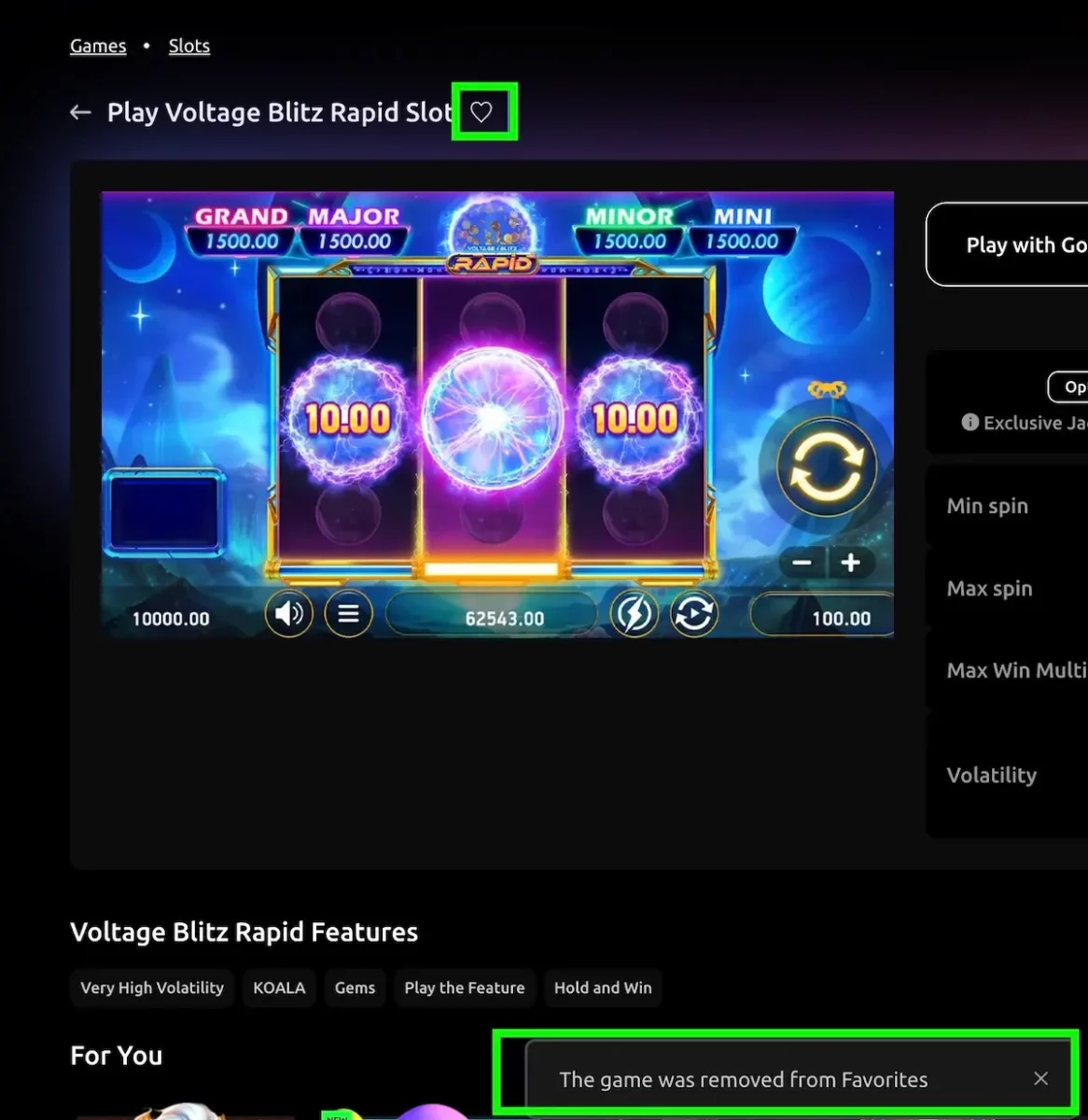
Removing a favorite works the exact same way, just in reverse.
- Open the game page again.
- Click the heart icon one more time.
- The shading disappears, and you’ll see a notification letting you know the game was removed.
Super quick and easy.
Favorites vs. Recently Played
In addition to Favorites, McLuck keeps a running list of dozens of games you’ve played recently. Favorites only show games you manually added, while Recently Played lists your full play activity history.
To view them:
- Click Recently Played on the sidebar or in the main navigation bar.
This category updates automatically and is perfect if you forgot the name of a game or want to return to something you tried earlier.
“For You” = Personalized Recommendations
If you want suggestions tailored to your interests, McLuck has a For You section:
- Accessible from both the sidebar and top navigation.
- Shows personalized slot recommendations.
This is an easy way to discover new games similar to ones you already enjoy!
Play What You Love at McLuck
McLuck’s Favorites feature functions like a custom playlist, by allowing you to:
✔ Save any game you love
✔ Instantly access your list from the sidebar
✔ Add or remove with one click
It’s a simple, effective way to organize your gaming experience and build your own personal lineup of slots. Start building your favorites list today and keep your top games just one click away.
Returning players can make the most of their gameplay with ongoing promotions at McLuck, while new users can unlock up to 150% in extra coins when they sign up. Start playing today!

Related Articles:
More Fun Facts
Things to Do on Labor Day Weekend (Fun Ideas for 2026)
Labor Day weekend is the unofficial end of summer. It is a time to relax, enjoy time with family and friends, and make the…
10 Fun Facts About Labor Day in the USA
Long weekend unlocked, finally! Between parades, cookouts, and last-chance summer adventures, Labor Day is all about celebrating the people who keep America ticking. Whether…

Only 9% of New York’s High-Rises Have a 13th Floor – and Asia Is Hiding a Completely Different Number
Superstition isn’t just folklore – it’s quietly reshaping the world’s buildings, floor by floor and room by room. According to a 2020 StreetEasy study,…

12 Fun Things to Do on 4th of July: 2026 Ideas for Every Kind of Celebration
Some holidays come with rules. The 4th of July mostly comes with one: have a good time, however that looks for you. Go big…
Is It Better to Play Max on Slot Machines?
If you have spent any time around slot players, you have probably heard it: always play max coins, it gives you better odds. It…
How to Get Free Spins at McLuck: A Complete Guide
If you are searching for McLuck free spins, you are likely looking for ways to unlock extra spins and extend your gameplay. This guide…